

Enricher logs
how-to Steps to accomplish one task
When an enricher fails to add data to a golden record, you can view the errors for that specific record without leaving its golden record page, instead of searching for them on the enricher’s own Logs tab.
Prerequisites
- You need access to enrichers (the same permission that lets you see the Enrich section) to see the Enricher logs option.
- At least one enricher must have run for the golden record. If none have, the panel tells you so and there is nothing further to view.
View enricher logs for a golden record
-
Open the golden record.
-
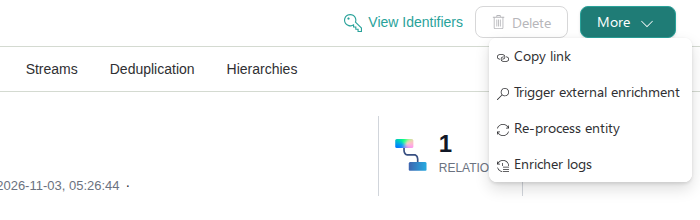
In the upper-right corner, select More, and then select Enricher logs.
-
In the Enricher logs panel, use the first dropdown to pick which of the record’s enrichers to view logs for. By default, the first enricher is selected.
-
Use the date filter next to it to narrow the results to a time range.
-
Select a row to expand it and see the clues (records) that were involved in that error, the same detail view used on the enricher’s own Logs tab. The row expands in place; a second panel does not open.
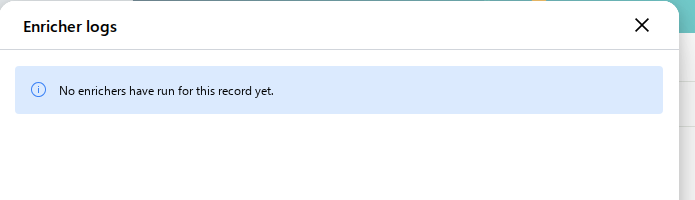
If no enrichers have run for the record yet, the panel shows a message instead of the picker and table:
What you see
The table has two columns:
- Message – the error message.
- Reported at – when the error was logged.
Only enricher errors for this record are shown. Other log types, such as mapping or processing errors, are not tied to a specific record and so are never shown here. For the full set of log types a data set can produce, see Logs.
What this changes
Nothing. The panel only displays existing logs; it doesn’t delete, retry, or modify anything.
If something goes wrong
If the panel keeps showing no logs for an enricher you expect errors from, widen the date filter, or check that enricher’s own Logs tab for the same record (search its clues for the record’s identifiers) to confirm whether the errors were logged under a different time range.